Sending Assessments
Add a client
Add a client from the Clients page so you can send them assessments. Their first name is the only detail you have to enter.
4 steps · 2 min read
Checked against the product on .
The next step once they are on your list: Send an assessment
The route
- Clients in the left-hand menu
- Add Client
- Their details
- Add & send or Add client only
Before you start
- Sign in to your practice. You start from the menu on the left of any dashboard page. On a phone or small tablet, it is behind the menu button at the top left.
- Have their first name. Their date of birth and email are worth adding if you have them.
- Some practices see Patients instead of Clients. The steps are the same. A plan management practice sees Participants: adding works the same, but sending is different, as step 4 says.
Step 1: Open Clients and press Add Client
You
In the menu on the left, press Clients. Add Client is the gold button at the top right of that page. You can also start on your Dashboard: the Add a client card on the right has an Add client button that opens the same window.
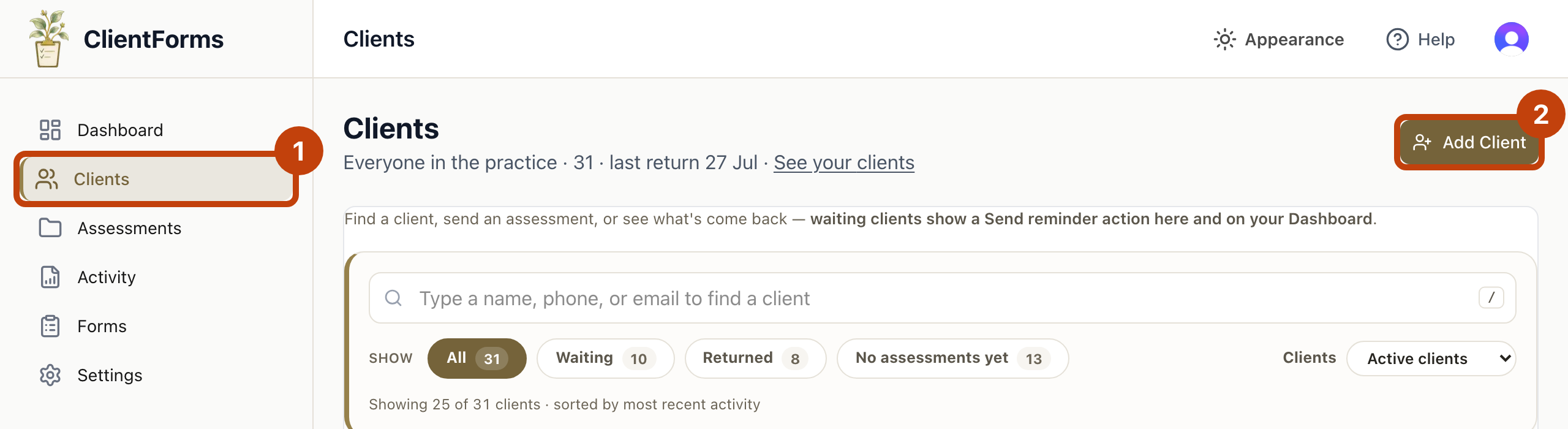
Tap the image to enlarge it.
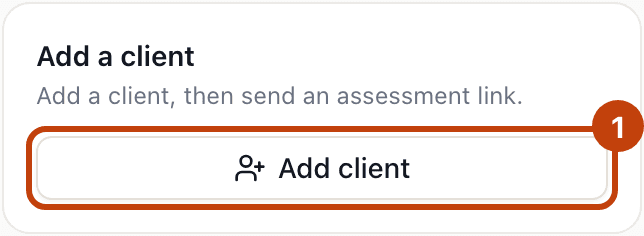
What you should seeA window called Add New Client opens.
If this looks different
If your menu says Patients, the button says Add Patient. If it says Participants, the button says Add participant.
Step 2: Enter their details
You
A window called Add New Client opens. First name is the only box you have to fill. Add their date of birth and email if you have them: Send uses the date of birth to offer forms that suit their age, and Email needs an address. More details opens phone and reference number.
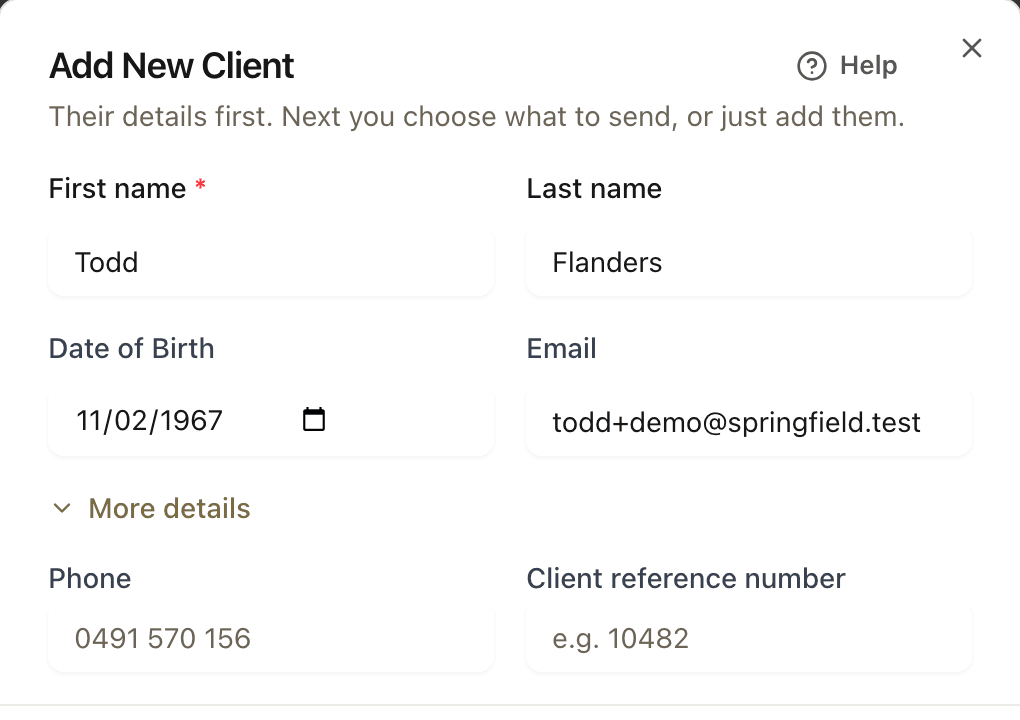
What you should seeThe two buttons at the bottom of the window can be pressed once a first name is in.
If this looks different
If the window opens on a search box, your practice is connected to Cliniko or PracSuite. Type their name and pick them; Add to ClientForms links their record and sends nothing. If nobody matches, press the line that adds what you typed as a new person, and the details boxes open.
Step 3: Press Add & send or Add client only
You
Both buttons are at the bottom of the window. Add & send adds them and goes straight to choosing what to send. Add client only adds them and sends nothing.
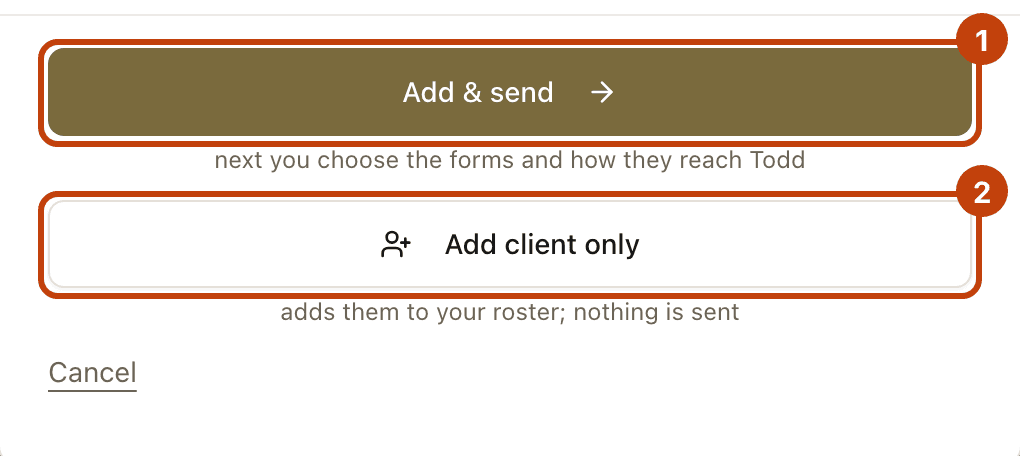
What you should seeAdd & send opens the panel titled Send to and their name. Add client only closes the window.
If this looks different
The buttons stay pale until there is a first name. If you added them by mistake, nothing has gone out to them, unless the service agreement switch was on.
Step 4: Find them on your list
You
After Add client only, they are on the Clients page, with No assessments yet under Status. Press their name, or Open at the end of their row, to go to their page.

Tap the image to enlarge it.
What you should seeTheir page opens, with their name at the top and the gold Send assessment button at the top right.
If this looks different
Not on the first page of the list? Type their name in the search box, and check the menu beside it reads Active clients. A participant's page in a plan management practice has no Send assessment button.
Frequently asked questions
Does adding a client email them?
No. Add client only sends nothing. Add & send opens Send, and nothing goes out until you press the gold button there. The one exception is a plan management practice's service agreement switch: with it on, the button emails the agreement straight away.
What if I don't have their email?
Add them with their first name. When you send, choose Copy link or In the room: neither needs an address.
Do I have to add everyone by hand?
No. A registration link lets people enter their own details, and a connected Cliniko or PracSuite account can bring them in. The guides below cover both.
Related guides
Send an assessment
Start on the client's page, press Send assessment, choose the forms, then email it, copy the link or do it together in the room. Scored results appear on the client's page.
Share your onboarding link
Your permanent practice link. patients register, sign consent, and complete forms without you creating their record first.
Connect Cliniko
Connect your practice to Cliniko, check what your region supports, and review the connection before using patient sync or result delivery.
Ready to try a different approach?
Calm forms for the people filling them in. Scored results and reports for you.
Full Professional access for 30 days, no card. Then a free plan with 3 forms and 10 responses.
Quiet design. Real impact.