After the Assessment
See who hasn’t finished, and remind them
A weekly look at every client with forms still to do, and a reminder for the ones you choose.
7 steps · 3 min read
Checked against the product on .
See who hasn’t finished, and remind them
A look at everyone with forms still to do. Do it once a week, for example on Monday morning: nothing prompts you to look. Pathway clients can also be reminded automatically (below).
3 stepsAbout 5 minutes a week
Good to know
- The Waiting list shows clients you sent forms to from ClientForms, and clients who used one of your pathway links. It does not show a form someone opened from its own public link.
Step 1: Open Clients.
You see: pills under the search box: All, Waiting, Returned, No assessments yet.
Step 2: Press Waiting.
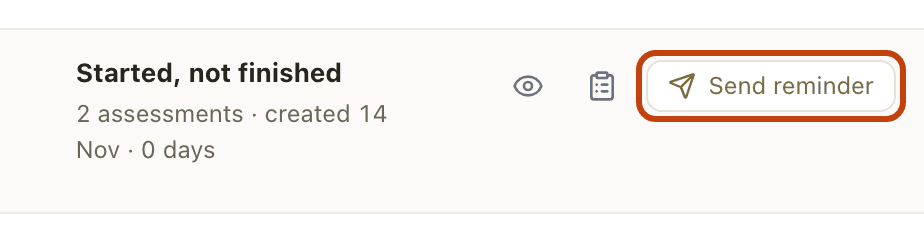
You see: one row per client, saying how far they got, such as “2 of 5 returned” or “Started, not finished”.

Tap the image to open a larger copy in a new tab.

Careful: Send reminder emails the client straight away
Each client can get two reminders, at least 5 days apart. Choose whom to chase before you press.
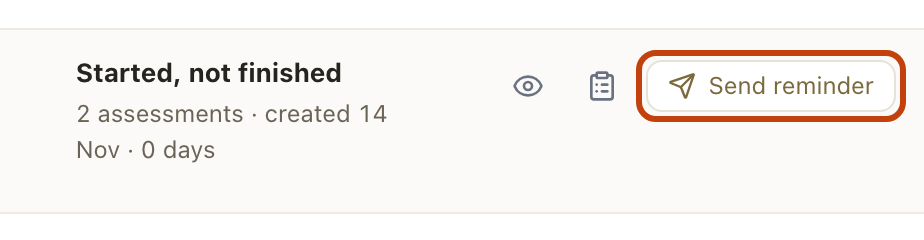
Step 3: On the row of each client you want to chase, press Send reminder. Skip the others.
You see: the button changes to “Reminder sent”.
Tap the image to open a larger copy in a new tab.
Careful: No Send reminder on a row?
The client has had a reminder recently or twice already. The row says when, such as “next reminder in 3 days” or “Reminded twice already”. A row showing Open has no live link to remind them with, for example an old request: press Open to go to their record and contact them from there.
Done when each client you wanted to chase shows “Reminder sent”, or says when the next reminder is possible. If Waiting shows no one, you are done for this week.
Remind pathway clients automatically
Clients who start from one of your pathway links can be reminded without you pressing anything. It is off until an owner or admin turns it on.
4 stepsOnceAbout 2 minutes
Before you start
- You need to be the practice owner or an admin. Others see the setting but cannot change it.
- The screen may say “patients” where this guide says “clients”. They mean the same.
Step 1: In the left menu, press Settings, then What clients are asked and sent.
You see: the page’s sections, with Reminders among them.
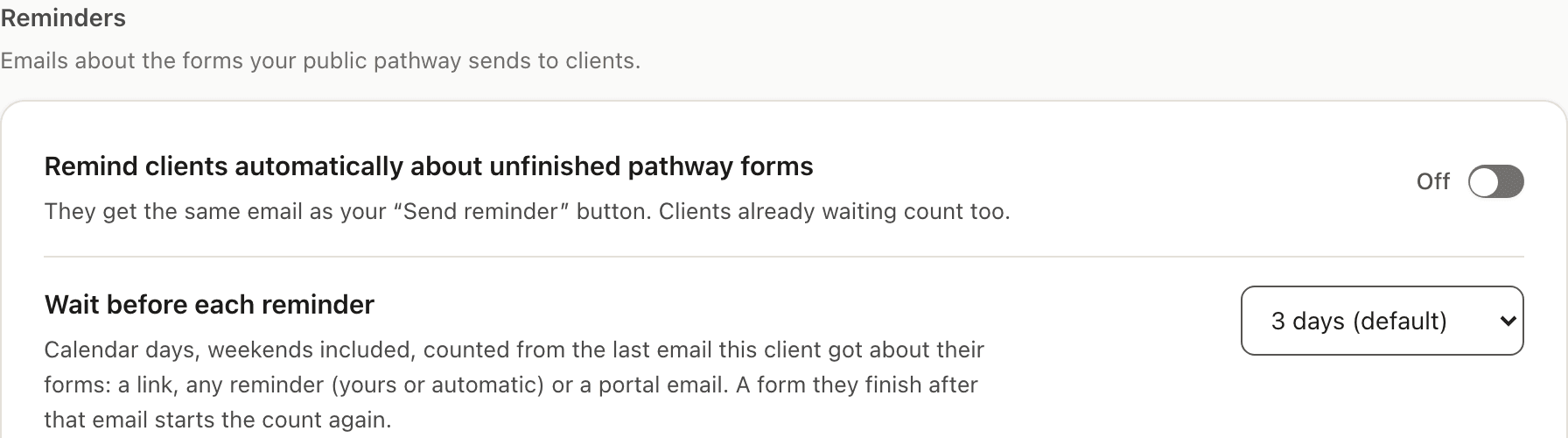
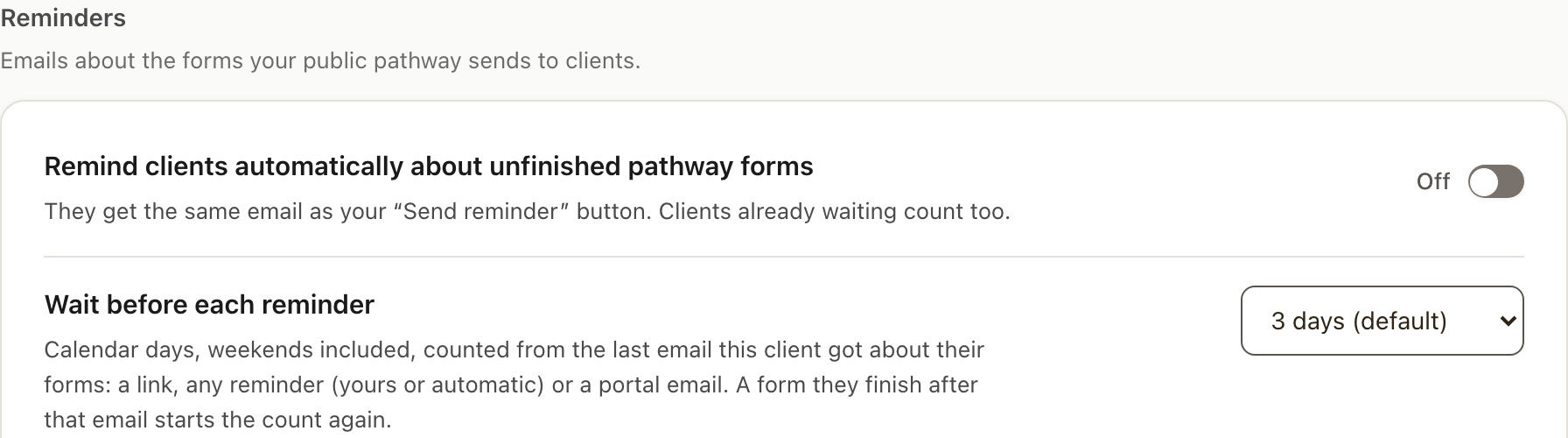
Step 2: Under Reminders, turn on Remind clients automatically about unfinished pathway forms.
You see: the switch says On. Clients already waiting count too.
Tap the image to open a larger copy in a new tab.
Step 3: OptionalChoose Wait before each reminder. It is 3 days unless you change it.
You see: an example under it with the dates a link emailed today would be reminded.
Step 4: In the left menu, press Dashboard and open Awaiting answers.
You see: “Automatic reminders for pathway requests are on.” at the top, and From a pathway on each row the reminders cover.
While they are off, the same line says so, with Open the reminder setting.
Good to know
- Who gets them
- Clients with forms still to do from one of your pathway links. Forms a clinician sends are never reminded automatically.
- How many
- At most 2 per request, at least the wait apart. Reminders you send count toward the 2.
- When
- Between 9 am and 5 pm on weekdays, in your practice’s timezone.
- To stop one
- Cancel that request. Turning the switch off stops any reminder not yet sent.
Done when the switch says On, and Awaiting answers says automatic reminders are on.
Related guides
Send an assessment
Start on the client's page, press Send assessment, choose the forms, then email it, copy the link or do it together in the room. Scored results appear on the client's page.
Send multiple assessments in one link
Send a battery of forms. Patients see a checklist and complete each one at their own pace.
Set up a patient intake pathway
Combine intake, consent, admin forms, and assessments into a single link patients complete before their first appointment.
Ready to try a different approach?
Calm forms for the people filling them in. Scored results and reports for you.
Full Professional access for 30 days, no card. Then a free plan with 3 forms and 10 responses.
Quiet design. Real impact.